The Connections page has one card per supported simulator, plus a shared debug view that shows the live telemetry snapshot of whichever simulator is currently connected (only one runs at a time).
Each card shows a status dot and an IDLE/CONNECTED label, mirroring the sim chips in the app’s header — see Status chips.
DCS
DCS needs no manual setup: SSA writes its entry into DCS’s Export.lua automatically every time it starts, so the card’s description switches from “Export script is maintained automatically on startup” to “Export script installed · receiving data” once a mission is running and data starts flowing.
If the export ever gets out of sync — for example another tool also edits Export.lua, or an update overwrote it — use Repair export…. It rewrites the SSA entry in every Export.lua it can find (both the release and open-beta Saved Games folders) and creates a backup of the file first.
DCS communicates with SSA over:
| Protocol | Port |
|---|---|
| UDP | 29375 |
| TCP | 12842 |
X-Plane
X-Plane support is opt-in. Toggle Support enabled on and point the file picker at your X-Plane.exe; SSA copies its plugin into that X-Plane installation. If the plugin doesn’t show up inside X-Plane afterwards, restart X-Plane. Turning the toggle back off removes the stored installation path (it does not delete the plugin files from X-Plane itself).
X-Plane sends data to SSA over UDP port 54930.
MSFS
The core MSFS/FSX connection uses SimConnect and works without any extra setup — no toggle needed for that part.
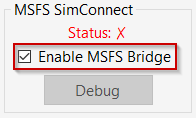
The WASM bridge toggle is for aircraft that expose extra data through custom LVARs that SimConnect alone can’t read. Enabling it opens a folder picker; point it at your MSFS Community folder and SSA installs the SSA WASM Bridge module there. If you run both MSFS 2020 and MSFS 2024, repeat the process for the other simulator’s Community folder (or copy the SSA WASM Bridge plugin folder there manually). Restart MSFS if the module doesn’t appear right away.
Status chips
The three chips in the app’s header (DCS, X-Plane, MSFS) reflect the same connection state shown on this page: gray/idle with a dim dot when nothing is coming in from that simulator, and lit up (accent color, filled dot) the instant SSA starts receiving data. They update live as you start and stop simulators, so they’re a quick way to confirm SSA is actually talking to your sim before you go dig through effect settings.
The debug view below the connection cards shows the raw telemetry snapshot for whichever simulator is currently connected — useful when reporting an issue or checking that a particular value (IAS, G-load, gear state, …) is actually coming through. It can be paused, copied to the clipboard, or popped out into its own window; building the snapshot text has a small performance cost, which is why a warning appears while it’s actively updating.
Troubleshooting
- Nothing connects at all — check that a firewall or VPN isn’t blocking local UDP/TCP traffic; SSA needs the ports above to be reachable on your own machine.
- DCS won’t connect — confirm a mission is actually running (DCS only exports data in-mission), then check Repair export…. Only official DCS modules are supported; third-party DCS mods are not.
- NLR HFS / export.lua conflicts — if you use NLR HFS for an HF8 alongside SSA, the two
Export.luaentries can conflict. Commenting out the NLR HFS line inExport.luaresolves it without removing NLR HFS. - VAICOM conflicts — SSA and VAICOM can run together, but if you see issues, try moving the SimShaker entries below the VAICOM entries in
Export.lua. - MSFS third-party aircraft missing effects — install the WASM bridge (see MSFS above); many custom cockpits only expose their extra data through LVARs.
More connection and firewall questions are answered in the FAQ, including port lookups with netstat and legacy SimConnect installers.